
AI Skills for State Legislative Staff
Download (PDF)
About this Guide
This guide, produced by POPVOX Foundation, introduces six ready-to-install skills that give state legislators and their staff a specialized AI assistant for the real work of the legislature — from bill summaries to floor prep to press releases — compatible with Claude, ChatGPT, Gemini, and Copilot.
What is a Skill?
The word “Skill” in this guide refers to a specific LLM feature, not a human ability. A Skill is a saved set of instructions you upload to your AI platform once and reuse across every conversation.
Without a Skill, AI assistants are capable but can be inconsistent. Ask for a bill summary and you might get vastly different results every time: varying length, varying structure, varying detail. A Skill fixes that by acting as standing instructions for a common task, so that the output is more consistent and predictable.
Skills also save you from typing a long prompt at the start of every conversation. A Skill is already loaded. Ask for a bill summary and you get a bill summary in the right format. Ask for floor week prep and the AI knows what that means, what to include, and how to structure it.
How Skills Work
Each Skill is a folder containing a SKILL.md file: a plain text document with a short description (which the AI reads to decide when to activate the Skill) and detailed instructions (which the AI reads when executing the task). The folder can also contain supporting files alongside the SKILL.md: templates, examples, or reference documents that the Skill draws on. The Skills in this guide are instruction-only, so each ZIP contains just the SKILL.md, but the format supports more.
The AI uses a progressive disclosure model: it reads only the short description for every Skill you have installed, and loads the full instructions only for the ones relevant to what you are working on. This means you can have multiple Skills installed without them interfering with each other.
Skills vs. Custom Bots
Every major AI platform also offers a way to create a custom assistant: a Claude Project, a ChatGPT Custom GPT, a Gemini Gem, or a Copilot Agent. You can paste any Skill’s text into one of these and it will work. So why use Skills instead?
The difference comes down to three things: where they live, how they activate, and what they’re good for.
A Skill is installed once and available everywhere you use your AI: in regular chat, inside Projects, and in any add-ins your platform supports. It activates automatically when the AI recognizes a relevant task, without you doing anything. A custom bot requires you to navigate to it before you start. If you forget, or you’re working somewhere else, the instructions aren’t there.
Custom bots still have their place. They’re better for persistent workspaces where you want a specific set of files, a running conversation history, and a defined scope: a research project, a member’s casework tracker, or a committee briefing book. Skills are better for repeatable task workflows that should follow you wherever you work.
How to Use the SKILL.md Text in This Document
Each skill section in this guide includes the full SKILL.md text, which is everything the AI reads when the Skill is active. You can use this text in two ways:
Download the SKILL.md file and upload it directly to your AI platform (recommended): each Skill’s file is available at popvox.org. Upload it to the Skills section of your platform. No setup required beyond the upload. For instructions on how to upload it, see How to Install a Skill below.
Copy the text and paste it into a new Skill on your platform: if your platform supports creating a Skill from scratch rather than uploading a file, you can copy the SKILL.md text printed below and paste it directly into the new Skill’s instructions field. You can also paste it into a custom bot’s instructions (a Claude Project, a ChatGPT Custom GPT, a Gemini Gem, or a Copilot Agent) if you would rather the workflow live in a specific workspace than activate automatically across all your conversations.
How to Install a Skill
The install process follows the same basic pattern everywhere, even if the exact button names shift over time or differ between models:
1. Find the Skills section. On most platforms this is in settings, your profile menu, or a dedicated sidebar item labeled Skills. If you cannot find it, search your platform’s help documentation for “Skills” or “Agent Skills.”
2. Upload the ZIP. Look for an Upload, Add, or + button. Select the ZIP file you downloaded. The platform reads the SKILL.md inside automatically.
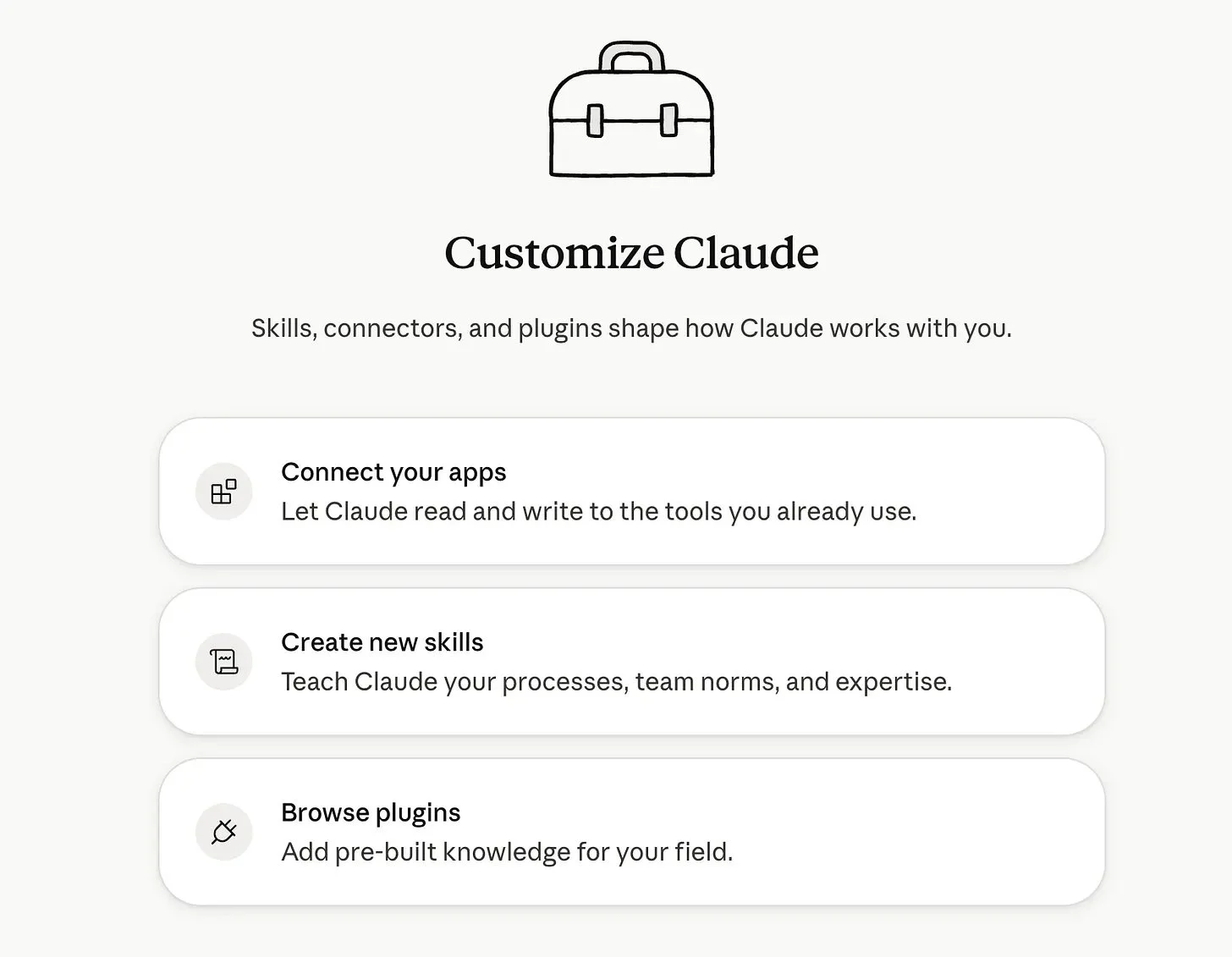
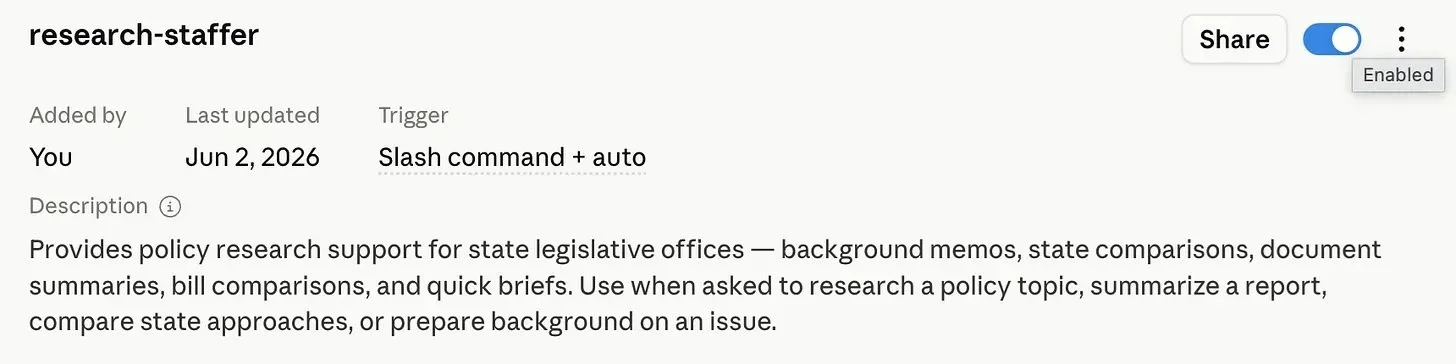
3. Enable it. Skills typically need to be toggled on after upload. Once on, the AI will use the Skill automatically when it recognizes a relevant task, or you can invoke it explicitly.
Microsoft 365 Copilot Cowork works slightly differently: instead of an upload button, you place the SKILL.md file in a specific OneDrive folder and the platform discovers it automatically. Check your platform’s current documentation if the upload method is not immediately obvious, as interface details change frequently.
Privacy and Security: Read This Before Use
These Skills are designed for use on commercially available AI platforms. Before using any of them for official legislative work, check your chamber’s IT or legal guidance on approved tools and data handling requirements.
Across all six Skills and all four platforms, never paste in:
Constituent names, addresses, case numbers, Social Security numbers, or any personally identifiable information (PII)
Confidential communications, privileged legal advice, or internal documents not intended for public release
Unpublished bill drafts or committee deliberations marked confidential
Any information your chamber’s IT or legal office has flagged as restricted
Always:
Use a paid subscription account. Free tiers have weaker data privacy protections and may use your inputs for model training
Disable data training and model improvement settings in your account preferences before first use
Use [PLACEHOLDER] language in skill setup (e.g., a constituent not a real name)
Check your chamber’s official AI guidance before deploying any Skill for official work
The Six Skills in This Guide
Personalization
The complete text of each SKILL.md file is included below. These are the exact instructions installed in each ZIP. You can copy, modify, or use them as a starting point for custom skills tailored to your office.
The most reliable way to personalize these skills further is to edit the skill instructions directly: add a short Office Context block at the top so the AI always knows your member, district, and preferences without you having to re-explain them each session. You can also just tell the AI this information at the start of a conversation, and it will apply it for that session, but in long conversations, the earliest messages are the first to get pushed out when the context window fills up, so anything you want the tool to always know is better baked into the instructions themselves.
All four platforms covered in this guide (Claude, ChatGPT, Gemini, and Microsoft Copilot) let you edit the skill or bot instructions directly: look for the Instructions or System Prompt field in your skill or bot settings.
Personalizing these skills for your office.
The skill text below will work out of the box, but it will work better if you adapt it to your specific office. You can add your Member's name, chamber, committee assignments, preferred formatting, and any standing rules. For example, that letters should always be signed by a specific title, or that bill summaries should always note the member's position. The more office-specific context you add, the more consistent and accurate the output will be. Even a few lines of personalization at the top of a skill's instructions can make a significant difference.
Tips for Best Results
Paste source material when you have it. Bill text, testimony, agency letters, and news articles all help the AI give you more accurate, specific output. The more context you provide, the better the result.
Ask for what you need, not how to get it. Say “give me floor week prep for Thursday,” not “use the floor week prep skill.” The AI figures out which skill to apply.
Review before sending. These skills produce strong first drafts, but member quotes, vote positions, and district-specific details need your eyes before anything goes out the door.
Iterate. If the output is close but not right, tell the AI what to change. ‘Make the tone more formal’ or ‘cut this to one page’ works exactly as you would expect.
Customize for your office. Each skill is a starting point. If your office has specific formatting, terminology, or style preferences, you can edit the SKILL.md file directly before installing it or in the AI platform after upload.
Skill Text
About POPVOX Foundation
POPVOX Foundation is a 501(c)3 nonpartisan nonprofit organization with a mission to help democratic institutions keep pace with a rapidly changing world. Through publications, events, prototypes, and technical assistance, the organization helps public servants and elected officials better serve their constituents and make better policy.
Learn more at popvox.org or contact us at info@popvox.org.